

Upload and manage videos
To use Rodeo, you must first upload your videos. Rodeo indexes each one, analyzing the visuals, audio, and on-screen text. Once a video is indexed, you can search it for clips and build cuts based on its content. Indexing time depends on the length and number of your videos.
Prerequisites
- A Rodeo account. If you don’t have one, sign up at rodeo.twelvelabs.io with your email or Google account.
- Each video you upload must meet these requirements:
- Duration: 4 seconds to 1 hour
- File size: ≤ 2 GB
- Resolution: 360x360 to 5184x2160
- Aspect ratio: 1:1 to 2.4:1
- Formats: FFmpeg supported
Upload videos
Upload your videos from the Media page.
Manage your videos
On the Media page, you can browse, search, inspect, rename, and delete your videos. These tasks assume you’ve uploaded at least one video.
Browse your videos
Each video in Media shows a thumbnail, its filename, duration, and upload date.
- To order your videos, open the Sort menu and choose Date, Alphabetical, or Size.
- To narrow the list, open the Filters menu and turn on a toggle: Title, Duration, Resolution, Frame rate, or File size.
- To change the layout, select the Grid view or List view button.
Search your videos
Find a specific moment based on what happens in your videos, not by filename or tag. Rodeo analyzes the visuals, audio, and on-screen text together, so a plain-language description can match the exact moment you want.

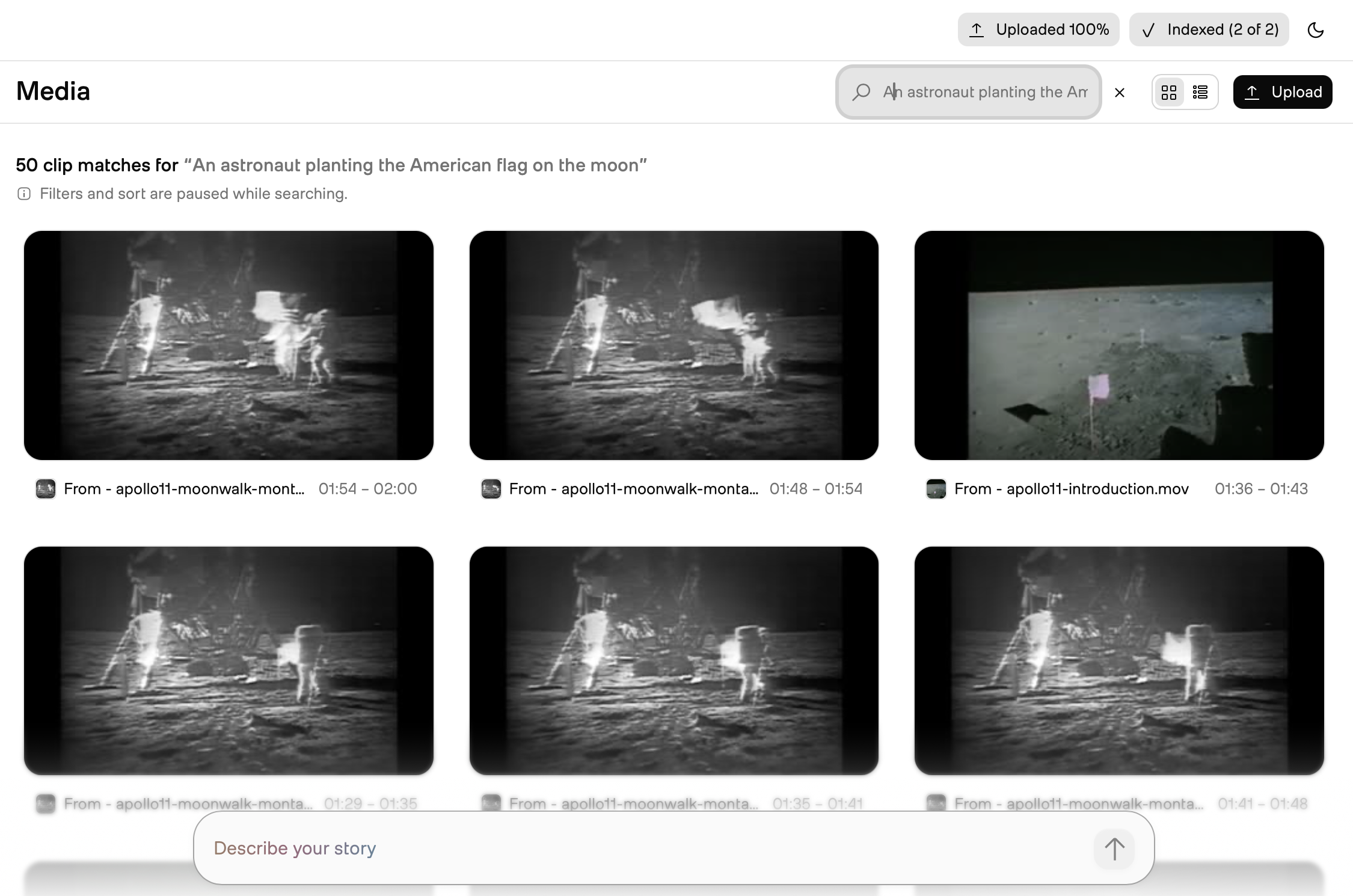
Inspect the details of a video
Select a video to open its details. The panel plays the video and shows a summary, a Detections list, and metadata such as resolution and duration. The Detections list groups what Rodeo detected into categories such as people, actions, and camera angles.
Rename or delete a video
By default, the name of every uploaded video is its filename. Rename a video for a clearer name, or delete one you no longer need.
Next steps
Your indexed videos are ready to use. Turn them into a cut.
- Create a rough cut: describe the story you want, and Rodeo builds a rough cut.